Docker Containers Aren’t Magic Boxes: Seeing Linux Namespaces in Action
Overview
Docker containers often feel like magical isolation chambers, completely separated from the host operating system. The reality is more nuanced: containers are indeed constrained, but the prison walls aren’t always as thick as they seem.
Watch the companion walkthrough: Jump to video
What actually separates containers from the host? Two key Linux kernel mechanisms: namespaces and cgroups. This post focuses on namespaces—specifically PID, mount, user, and network namespaces. (Cgroups will be covered separately.)
What’s Really Running When You “Run a Container”?
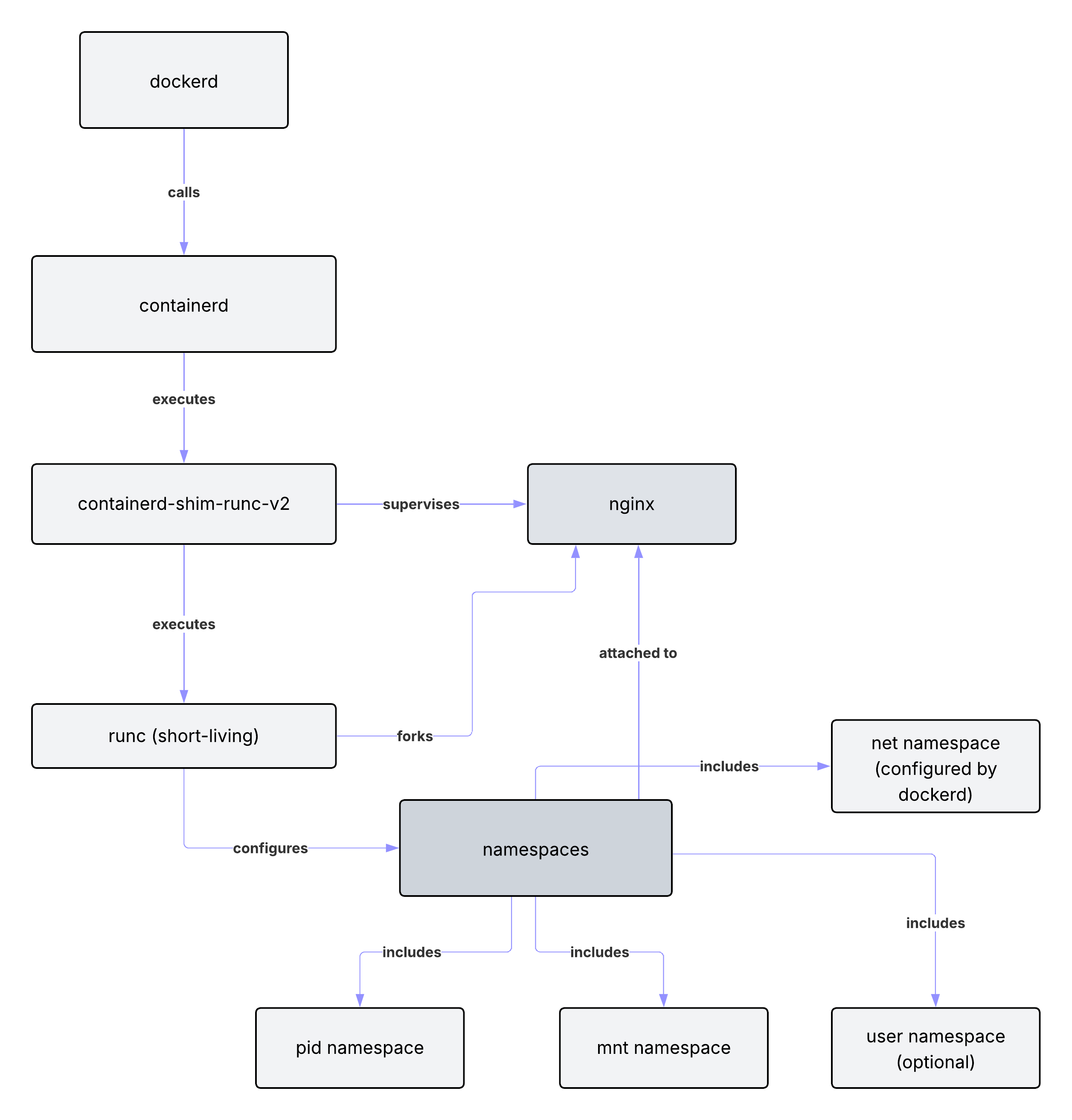
Before diving into namespaces, let’s quickly recap the process flow inside Docker’s ecosystem:
- dockerd (invoked by Docker CLI) communicates with containerd
- containerd manages image pulling and container orchestration
- For each container, containerd launches a containerd-shim process
- The shim runs a short-lived runc process, which:
- Configures the namespaces (the “prison walls”)
- Forks the isolated application process (e.g., nginx)
- The shim then supervises this isolated process, holding its file descriptors
Now let’s see how these namespaces actually function in practice.
Demo Setup: Running Nginx and Inspecting Its Namespaces
Let’s start by launching a standard nginx container on port 8080:
docker run --rm --name=my-nginx -p 8080:80 -d nginx:latest
Since runc configures namespaces per container, we can inspect them directly. Let’s grab the nginx process ID and list its namespaces:
PID=$(docker inspect -f '{{.State.Pid}}' my-nginx) && sudo ls -l /proc/$PID/ns
You’ll see several namespace entries. Let’s explore the most essential ones, starting with the PID namespace.
PID Namespace: Why top Only Shows “The Container”
Let’s enter the nginx container, install some monitoring tools, and run top:
docker exec -ti my-nginx bash
apt update && apt install -f procps iproute2
top
Press ‘c’ button.
From inside the container, you’ll see only the nginx master and worker processes—nothing from the host. This is what a PID namespace does: it gives the container its own isolated process view.
By default, a containerized process can only see processes within its own PID namespace. Tools like top will show only the container’s init process and its children. But this isn’t hardcoded magic—it’s a configuration choice.
Breaking the Illusion: --pid=host
Let’s stop the container and restart it with --pid=host:
In the separate tab:
exit
In the main tab:
docker kill my-nginx
Now the container joins the host PID namespace:
docker run --rm --name=my-nginx -p 8080:80 --pid=host -d nginx:latest
In the separate tab:
docker exec -ti my-nginx bash
apt update && apt install -f procps iproute2
top
Press ‘c’ button.
Suddenly, top shows the full host process list. Key takeaway: A container is not a VM. It’s still just a normal Linux process, and what it can see depends entirely on namespace configuration.
In the separate tab:
exit
In the main tab:
docker kill my-nginx
Mount Namespace: Same Machine, Different Filesystem Views
The mount namespace isolates a process’s view of the filesystem by giving it its own mount table. In a container, this view typically starts from a special root filesystem (rootfs) built from image layers—for example, a Debian userland plus nginx binaries and configs.
Let’s restart our container with default settings and look around:
docker run --rm --name=my-nginx -p 8080:80 -d nginx:latest
In the separate tab:
docker exec -ti my-nginx bash
cat /etc/os-release
cat /etc/nginx/nginx.conf
In the main tab:
cat /etc/os-release
cat /etc/nginx/nginx.conf
Inside the container, /etc/os-release reports a Debian system, while the host runs Fedora. The container process sees a completely different root filesystem.
Now check the nginx config at /etc/nginx/nginx.conf. Physically, this file lives somewhere in Docker’s image storage on the host. But the host doesn’t see it under /etc/nginx—instead, it’s mounted into the container’s isolated filesystem view. This is the mount namespace in action: same machine, different filesystem perspectives.
In the separate tab:
exit
In the main tab:
docker kill my-nginx
User Namespace: When “root” Is Really Root (And When It Isn’t)
By default, Docker does not use user namespaces. Let’s see what that means in practice.
Create a temporary folder on the host and restart the container with a bind mount:
mkdir -p /tmp/userns-demo
docker run --rm --name=my-nginx -p 8080:80 -v /tmp/userns-demo:/demo -d nginx:latest
Now create a test file from inside the container and restrict its permissions to root only:
In the separate tab:
docker exec -ti my-nginx bash
echo "test from container" > /demo/container_file.txt
In the separate tab:
chmod 600 /demo/container_file.txt
Check this file on the host:
In the main tab:
ls -la /tmp/userns-demo
The file is owned by root on the host. Non-root users can’t access it. This proves that without user namespaces, the root user in the container maps directly to the root user on the host.
In the separate tab:
exit
In the main tab:
docker kill my-nginx
Enabling userns-remap
Now let’s enable user namespace remapping by setting userns-remap to default:
sudoedit /etc/docker/daemon.json
{
    "userns-remap": "default"
}
In the separate tab:
exit
In the main tab:
docker kill my-nginx
Restart the Docker service:
sudo service docker restart
Start the container again with the same bind mount:
docker run --rm --name=my-nginx -p 8080:80 -v /tmp/userns-demo:/demo -d nginx:latest
Check the /demo folder inside the container:
In the separate tab:
docker exec -ti my-nginx bash
ls -la /demo
Notice the ownership has changed—the folder now appears as nobody. What happened?
With userns-remap enabled, Docker creates a dockremap user and assigns it a subordinate UID range—a range of UIDs the process can use to create user namespaces. Check /etc/subuid:
In the main tab:
ls -la /etc/subuid
The dockremap user typically gets a range starting at 100000 and spanning 65536 UIDs.
UID Mapping in Practice
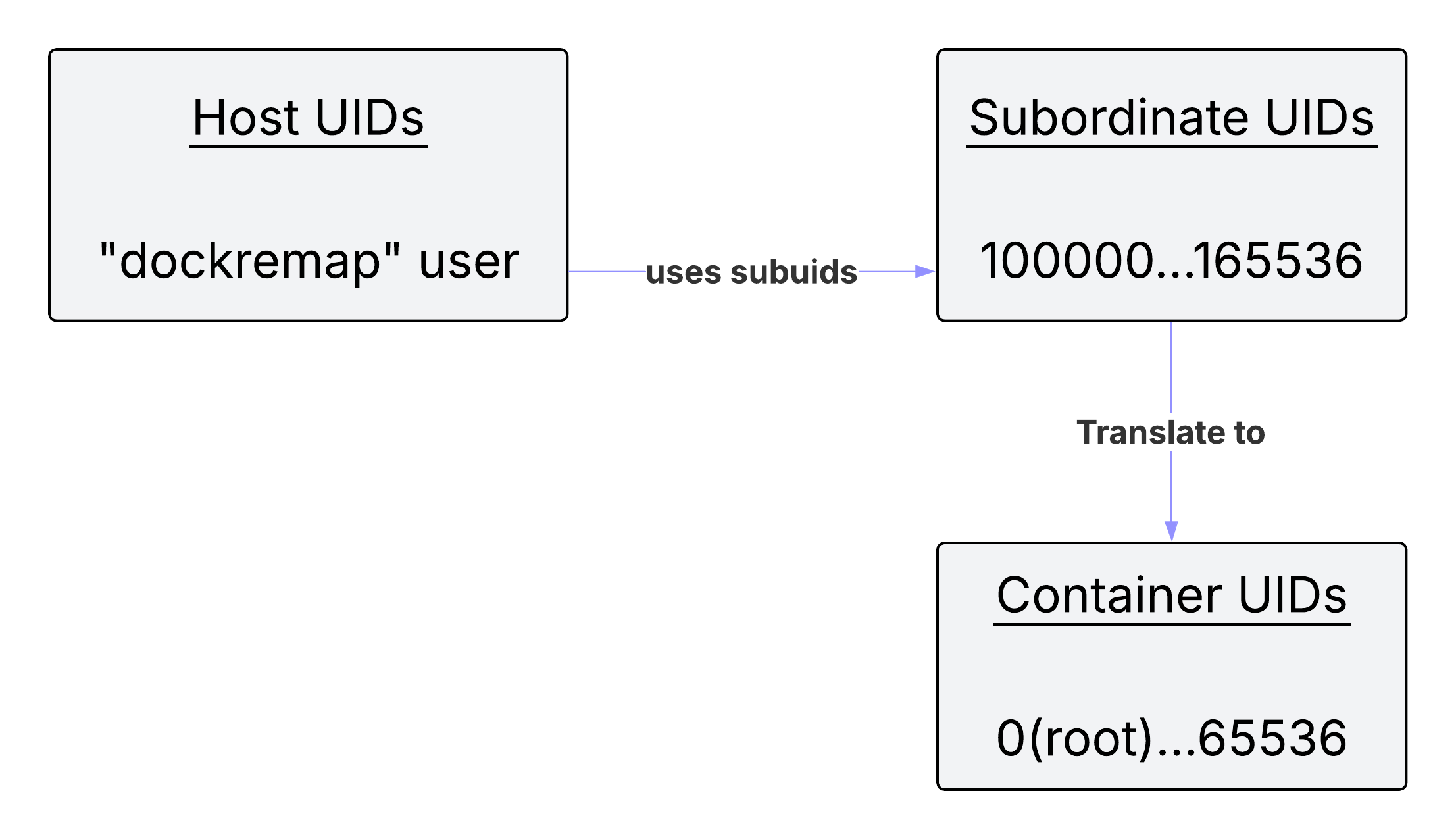
Let’s change the test folder’s ownership to UID 100000 on the host:
In the main tab:
sudo chown -R 100000:100000 /tmp/userns-demo
Check the folder from inside the container:
In the separate tab:
ls -la /demo
The container sees this folder as owned by root. Now set the UID to 1001003 on the host:
In the main tab:
sudo chown -R 1001003:1001003 /tmp/userns-demo
In the separate tab:
ls -la /demo
The container sees UID 1003. This demonstrates how UID mapping works: the container’s UID 0 maps to the host’s 100000, UID 1 maps to 100001, and so on. This is user namespacing in action.
Network Namespace: docker0, veth, and Breaking Isolation with --network=host
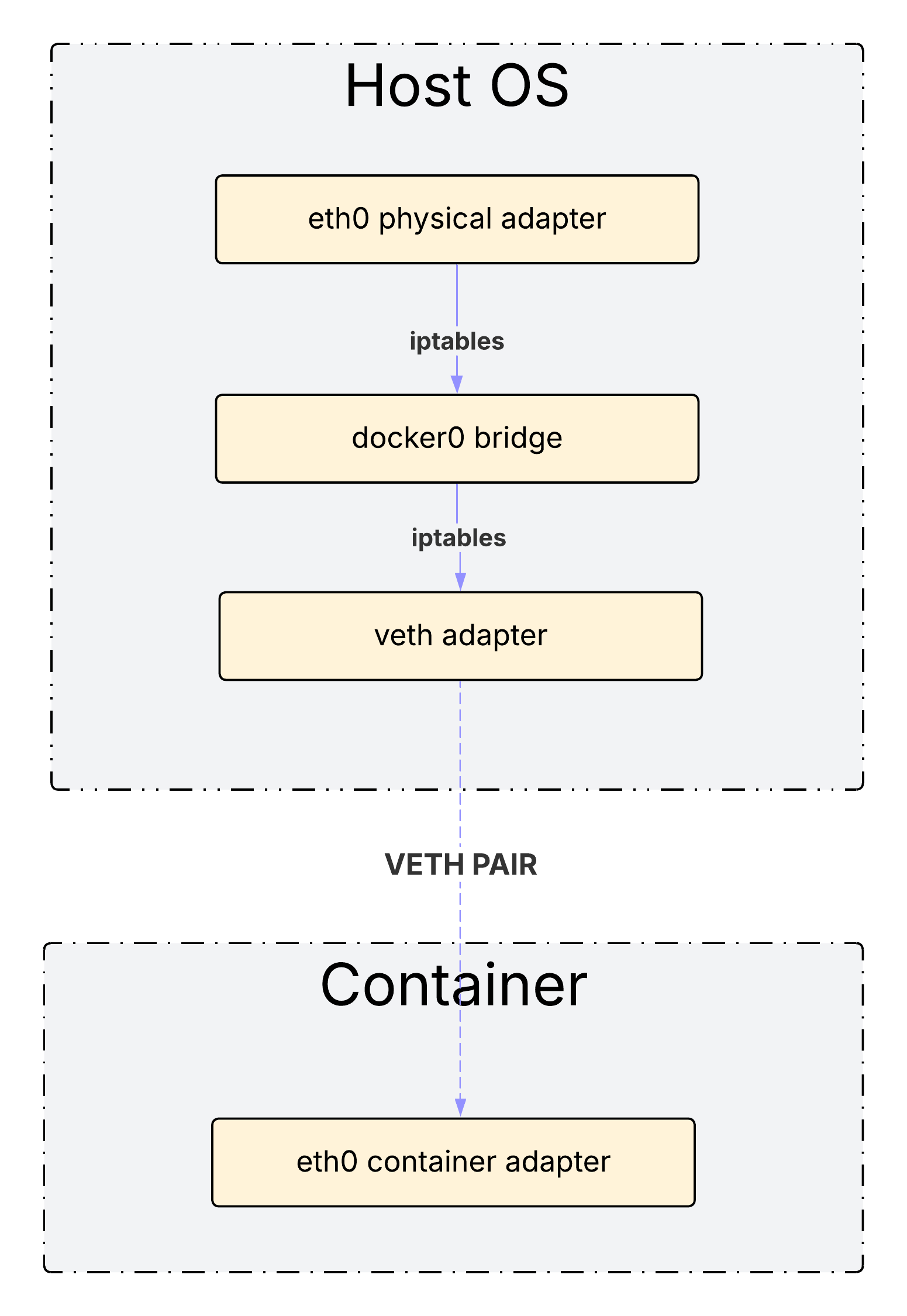
Finally, let’s examine the network namespace. List the network interfaces on the host:
ip addr
Notice the docker0 bridge and veth interfaces. Now run the same command in the container:
In the separate tab:
apt update && apt install -y iproute2
ip addr
The container sees only a limited set of interfaces. The network namespace provides an altered view of network devices. The docker0 interface acts as a bridge, allowing the container to access the internet just like the host does.
But we can break this isolation entirely. First, disable userns-remap:
sudoedit /etc/docker/daemon.json
{
}
Restart the Docker service:
sudo service docker restart
Now restart the container with --network=host:
In the separate tab:
exit
In the main tab:
docker kill my-nginx
docker run --rm --name=my-nginx -p 8080:80 --network=host -d nginx:latest
Check the network interfaces on the host:
ip addr
And inside the container:
In the separate tab:
apt update && apt install -y iproute2
ip addr
They’re identical. The container now shares the host’s network namespace completely. This proves once again that Docker containers aren’t isolated black boxes—they’re Linux processes constrained by standard kernel mechanisms like namespaces.
Conclusion
Namespaces are the fundamental isolation mechanism behind Docker containers. In this post, we’ve explored how Docker leverages PID, mount, user, and network namespaces to control what an isolated process can see and access.
The key insight? Containers are not virtual machines. They’re Linux processes with configurable boundaries. Understanding these boundaries—and knowing when and how to adjust them—is essential for anyone working seriously with containers.
If you want more deep dives like this exploring the inner workings of Docker, Kubernetes, and Linux systems, consider following along on YouTube or leaving a comment below with topics you’d like covered next.
Watch the video version
Prefer YouTube app/comments? Open on YouTube